Description
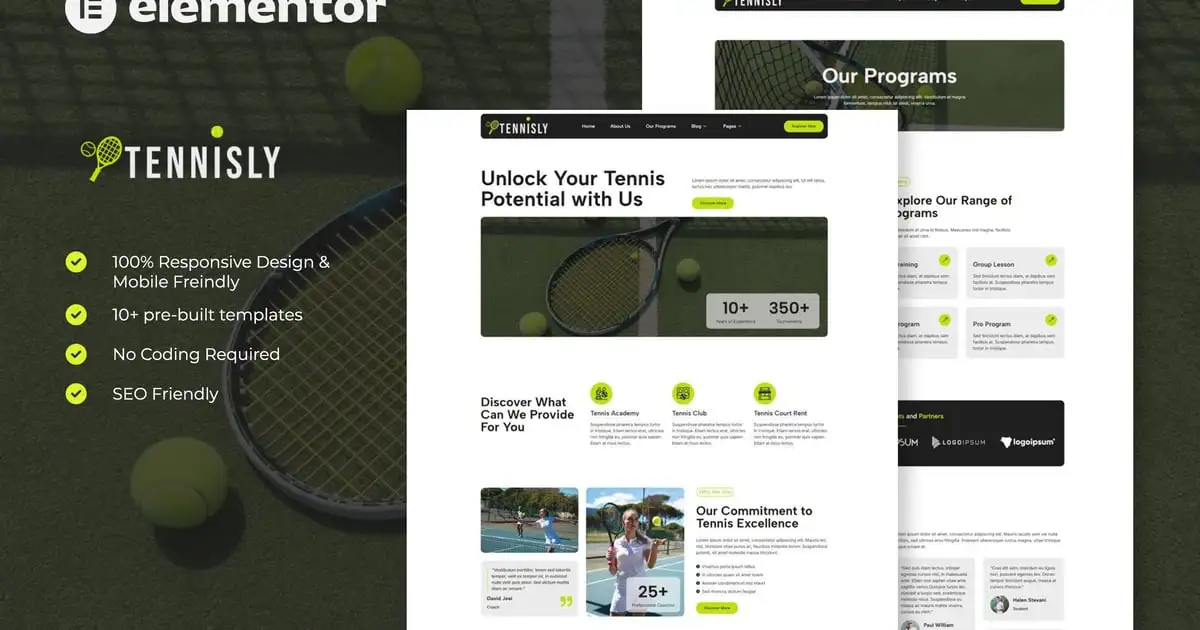
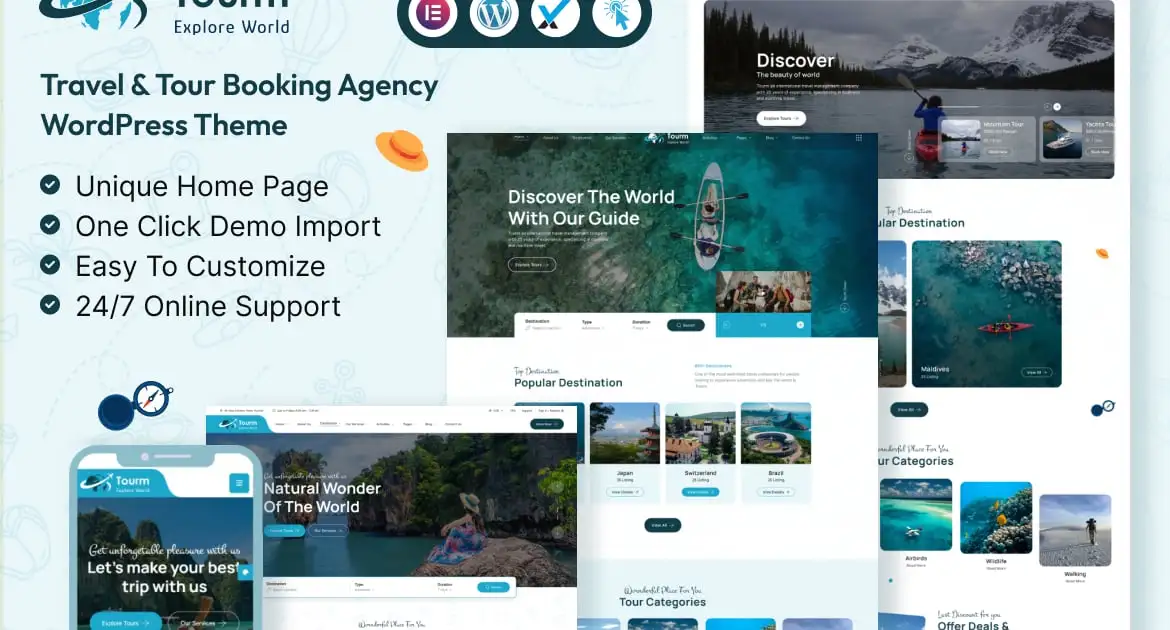
Sympa is an Elementor Template Kit for creating websites for your business using the Elementor Page Builder plugin for WordPress. It is fully responsive and retina-ready, and comes with several features to offer, such as templates that will be the perfect starting point for Software Development, Mobile app Development, web design, web development, and any application testing.
This template kit includes 12+ carefully crafted templates so you can build your professional website just a click away.
Features:
- Using Free Plugins (Elementor Pro is not required)
- Modern & Clean Design
- 12+ Ready to use templates
- Fully Responsive Layout
- Retina Ready
- Fully Customizable
- Cross Browser Compatibility: Chrome, Firefox, Safari, Opera
Templates Include:
- Home One
- Home Two
- About Us
- Services
- Services Details
- Project
- Project Details
- Our Team
- Pricing
- Blog
- Single Blog
- Contact
- MetForm Contact
- 404 Page
- Header
- Footer
- Global Theme Style
Required Plugin:
- Elementor
- Elementor Header & Footer Builder
- Jeg Elementor Kit
- ElementsKit Elementor addons
- MetForm
How to Use Template Kits:
- Install and Activate the “Envato Elements” plugin from Plugins > Add New in WordPress. You do NOT need an Envato Elements subscription to use this plugin to install kits.
- Download your kit file and Do not unzip it! If you have Safari, ensure “open safe files after downloading” is not enabled in preferences.
- Go to Elements > Installed Kits and click the Upload Template Kit button. You may also import automatically by clicking Connect Account to link your Elements subscription, then import under Elements > Template Kits.
- Check for the orange banner at the top and click Install Requirements to load any plugins the kit uses
- Click import on the Global Kit Styles first
- Click Import on one template at a time. These are stored in Elementor under Templates > Saved Templates.
- Go to Pages and create a new page and click Edit with Elementor
- Click the gear icon at lower-left of the builder to view page settings and choose Elementor Full Width and hide page title
- Click the gray folder icon to access My Templates tab and then Import the page you’d like to customize.
Detailed Guide: https://help.market.envato.com/hc/en-us/articles/900000842846-How-to-use-the-Envato-Elements-WordPress-Plugin-v2-0
For further support, go to Elementor > Get Help in WordPress menu.
How to Import Metforms
- Import metform and content blocks/slide templates
- Import the template where the form or slide appears, then click View Template to load in the builder
- Right click the page to open the Navigator and locate the TF Carousel and Metform widgets
- For Carousels, select the corresponding content block from the template dropdown on the Carousel tab
- For metforms, click New, leave blank selected then click Edit Form button
- Click ‘Add Template’ grey folder icon.
- Click ‘My Templates’ tab.
- Choose your imported metform template, then click ‘Insert’.
- Once the template is loaded, click ‘Update’.
How to setup header in Jeg Elementor Kit plugin
If you have Elementor Pro, headers and footers may be customized under Theme Builder.
- Go to Jeg Elementor Kit menu item > Header Template
- Click Add New Header
- Add condition > All Site and click Create
- Click gray folder icon to access My Templates tab
- Insert the header template.
- Customize and Save.
### Notes:
This Template Kit uses demo images from Envato Elements. You will need to license these images from Envato Elements to use them on your website, or you can substitute them with your own.
- https://elements.envato.com/collections/RDUHZ5GQYW