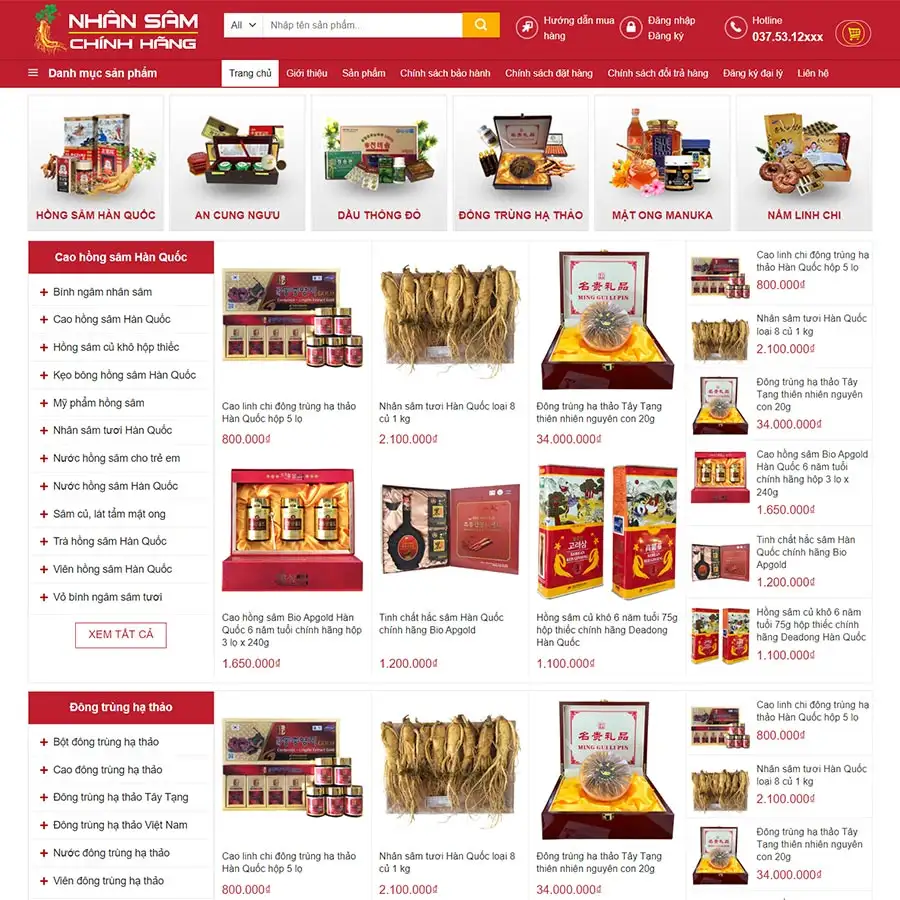
Theme WordPress bán nhân sâm Giá gốc là: 1.100.000₫.700.000₫Giá hiện tại là: 700.000₫.

Advanced Custom Fields for WooCommerce Giá gốc là: 100.000₫.80.000₫Giá hiện tại là: 80.000₫.

Mô tả
Description
Securety V2 is an Elementor Template Kit for building Cyber Security websites in WordPress and Elementor Free. In today’s interconnected world, safeguarding your digital assets is paramount, and Securety is here to empower you. Crafted with precision and loaded with a wide range of security-focused features, this template kit is the ideal solution for cyber security agencies, IT consultants, and businesses seeking to enhance their online defenses.
Securety V2 leverages the flexibility of Elementor Free and the reliability of WordPress to offer you a seamless website-building experience. With a user-friendly interface and a collection of prestyled elements, you can effortlessly customize your website to showcase your cyber security services. From dynamic threat analysis visuals to interactive security breach prevention modules, Securety encompasses all aspects of cutting-edge cyber security.
Whether your specialization lies in network security, data protection, or ethical hacking, Securety provides the tools to communicate your expertise effectively. Its adaptable layouts and comprehensive documentation make it accessible to users of various technical backgrounds. Harness the power of WordPress and Elementor Free to establish a compelling online presence for your cyber security venture.
Features:
- Compatible with Free Plugins (Elementor Pro not required)
- Unique & Clean Design
- Modern design based on design system
- 19 Ready to use templates
- Fully Responsive Layout
- Fully Customizable
- Cross Browser Compatibility: Chrome, Firefox, Safari, Opera
Templates Include:
- Global Theme Style
- Home
- About Us
- Our Team
- Services
- Pricing
- Testimonial
- FAQ
- 404 Page
- Blog
- Single Post
- Contact Us
- Header
- Footer
- General Form (MetForm)
- Contact Form (MetForm)
- Subscribe Form (MetForm)
- Subscribe Form 2 (MetForm)
- Tesimonial Form (MetForm)
Required Plugin(included):
- Elementor
- Elementskit Lite
- MetForm
- Gum Elementor Addon
- Sticky Header Effects for Elementor
How to Use Template Kits:
This is not a WordPress Theme. Template kits contain the design data for Elementor only and are installed using the envato Elements plugin for WordPress or directly through Elementor.
- Download your kit file from Envato and do not unzip it. If you use Safari browser you may need to ensure “Open safe files after downloading” is disabled in the browser preferences.
- Go to Settings > Permalinks and ensure Post Name is selected
- Go to Appearance > Themes > Add New and ensure Hello Elementor is installed and activated. This will prompt you to install Elementor if you haven’t already.
- Go to Plugins and ensure Elementor and Envato Elements are installed and at the latest version. If your kit requires Elementor Pro, it must be installed now and connected to your account.
- Go to Elements > Installed Kits and click Upload Template Kit Zip (or click your kit to view it)
- Check for the orange banner at the top and click Install Requirements to load any plugins the kit uses. https://envato.d.pr/ughD8Q
- Click import on the Global Kit Styles first. This will setup the site settings.
- Click Import on one template at a time in the order shown. These are stored in Elementor under Templates > Saved Templates and are re-used from here.
Creating pages
- Go to Pages and create a new page and click Edit with Elementor
- Click the gear icon at lower-left of the builder to view page settings and choose Elementor Full Width and hide page title
- Click the gray folder icon to access My Templates tab and then Import the page you’d like to customize.
- The home page is set under Settings > Reading by selecting Static Front Page.
If you have Elementor Pro, headers and footers are customized under Templates > Theme Builder.
Detailed Guide: https://help.market.envato.com/hc/en-us/articles/900000842846-How-to-use-the-Envato-Elements-WordPress-Plugin-v2-0
For further support, go to Elementor > Get Help in WordPress menu.
How to Import Metforms
If you have Elementor Pro, skip install of Metform and form blocks.
- Import the metform block templates
- Import the page template where the form appears and right-click to enable the Navigator
- Locate and select the Metform widget and click Edit Form. Choose New, then Edit Form. The builder will appear
- Click ‘Add Template’ grey folder icon.
- Click ‘My Templates’ tab.
- Choose your imported metform template, then click ‘Insert’ (click No for page settings).
- Once the template is loaded, make any desired customizations and click ‘Update & Close’ The form will appear in the template
- Click Update
Setup Global Header and Footer in ElementsKit
If you have Elementor Pro, headers and footers may be customized under Theme Builder.
- Import the header and footer template
- Go to ElementsKit > Header Footer and click Add New (if prompted with a wizard, you may click Next through it without taking any action)
- Title the header, leave Entire Site selected and toggle Activation to On
- Click the gray Edit Content button to load the builder
- Click the gray folder icon and select the header template to import, select your menu in the nav element and click Update.
- Repeat for Footer
IMPORTANT:
This Template Kit uses demo images from Envato Elements. You will need to license these images from Envato Elements to use them on your website, or you can substitute them with your own.
- https://elements.envato.com/collections/D3GYQLACZM
Có thể bạn quan tâm


Thông tin thanh toán


Đăng ký theo dõi
Đăng nhập
Cũ hơn