
Description
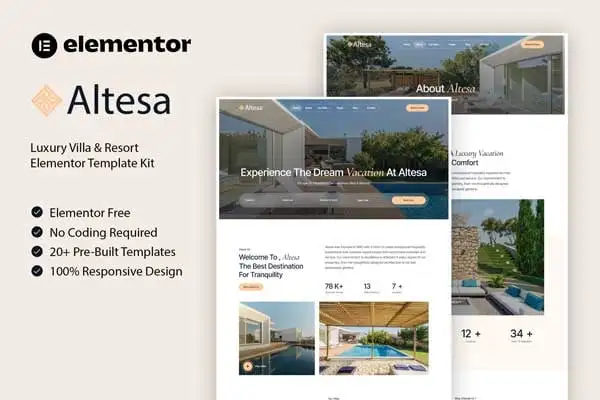
Altesa is a sophisticated and stylish Villa & Resort Template Kit, perfect for crafting stunning websites for villas, hotels, resorts, guest houses, and vacation rentals. With a modern and elegant design, Altesa ensures a 100% responsive layout, retina-ready visuals, and effortless customization, delivering a seamless experience across all devices.
This template kit features 20+ meticulously designed templates, enabling you to create a professional and captivating website with ease. Utilizing the Elementor Page Builder, customization is a breeze with its drag-and-drop interface—no coding required. Elevate your hospitality business with Altesa and attract guests with a breathtaking online presence.
Features:
- Great for Villa & Resort
- Fully With Elementor Free Version (Elementor Pro is not required)
- Simple, Modern and Clean Design
- No Coding Knowledge Required
- 20+ Ready To Use Templates
- Easy & Fully Customizable
Templates Include:
- Global Kit Style
- Home
- About
- Our Villas
- Villa Details
- Our Staff
- Pricing Package
- Gallery
- Testimonials
- FAQ
- 404 Page
- Coming Soon
- Blog
- Single Blog
- Contact
- Header
- Footer
- Metform Booking 1
- Metform Booking 2
- Metform Contact
Required Plugin:
- Elementor (Free)
- Jeg Elementor Kit
- MetForm
Creating pages
- Go to Pages and create a new page and click Edit with Elementor
- Click the gear icon at lower-left of the builder to view page settings and choose Elementor Full Width and hide page title
- Click the gray folder icon to access My Templates tab and then Import the page you’d like to customize.
- The home page is set under Settings > Reading by selecting Static Front Page.
If you have Elementor Pro, headers and footers are customized under Templates > Theme Builder.
Detailed Guide: https://help.market.envato.com/hc/en-us/articles/900000842846-How-to-use-the-Envato-Elements-WordPress-Plugin-v2-0
For further support, go to Elementor > Get Help in WordPress menu.
How to Import Metforms
If you have Elementor Pro, skip install of Metform and form blocks.
- Import the metform block templates
- Import the page template where the form appears and right-click to enable the Navigator
- Locate and select the Metform widget and click Edit Form. Choose New, then Edit Form. The builder will appear
- Click ‘Add Template’ grey folder icon.
- Click ‘My Templates’ tab.
- Choose your imported metform template, then click ‘Insert’ (click No for page settings).
- Once the template is loaded, make any desired customizations and click ‘Update & Close’ The form will appear in the template
- Click Update
How to setup header in Jeg Elementor Kit plugin
If you have Elementor Pro, headers and footers may be customized under Theme Builder.
- Go to Jeg Elementor Kit menu item > Header Template
- Click Add New Header
- Add condition > All Site and click Create
- Click the pencil icon to Edit and elementor will appear
- Click gray folder icon to access My Templates tab
- Insert the header template.
- Customize and Save.
Images
This Template Kit uses demo images from Envato Elements. You will need to license these images from Envato Elements to use them on your website, or you can substitute them with your own.
- https://elements.envato.com/collections/YCLVRST4MA