Description
<div class="”body”">
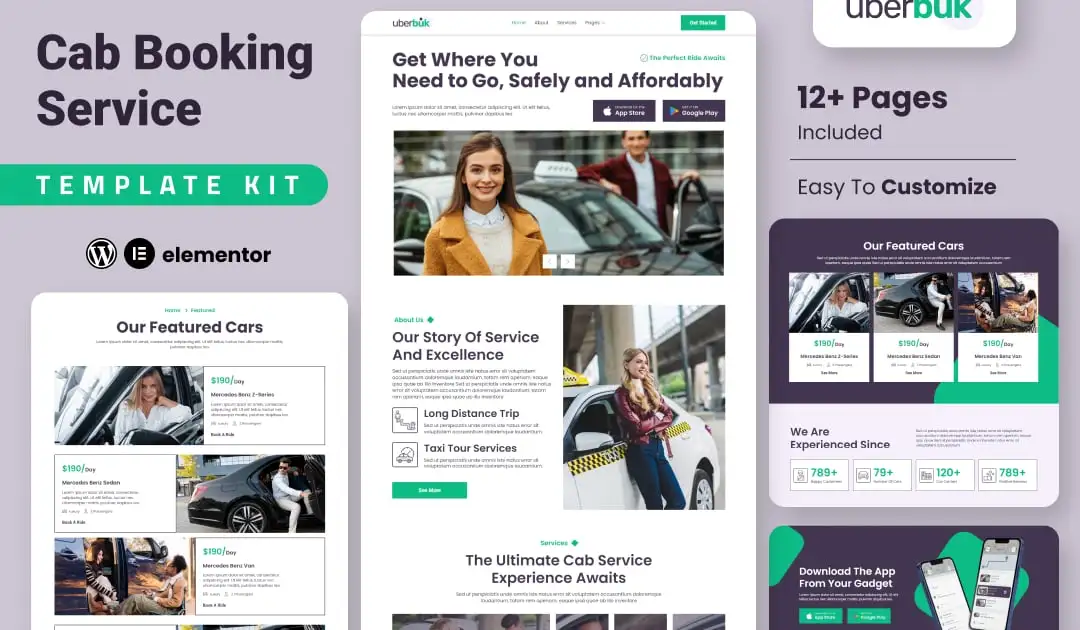
Introducing Uberbuk – a sleek, modern Elementor template kit designed for car booking services. Perfect for taxi, ride-sharing, and vehicle rental businesses, this kit offers a user-friendly interface with clean design elements and intuitive navigation. Uberbuk features pre-designed pages for booking, fleet showcase, pricing plans, and customer testimonials, all easily customizable to fit your brand. With mobile responsiveness and fast loading speeds, it ensures a seamless user experience across devices. Elevate your car booking service with Uberbuk and make online reservations effortless for your customers.
#### Feature
- Individual elements can be fine-tuned or fonts and colors can be changed all in one spot.
- Drag-and-drop visual builder for true no-code customization.
- Design that is both contemporary and professional.
- Fast-loading.
- Most Elementor themes are compatible with this templatekit.
#### Templates Include:
- Home
- About
- Services
- Featured
- Pricing
- Team
- Blog
- Blog Details
- Contact
- Coming Soon
- 404
#### Sections and Blocks:
- Header
- Footer
- Contact form
- Booking Form
- Newsletter
#### Required Plugins Pre-Installed With the Kit
- Elementor
- Jeg Elementor kit
- Happy Elementor Addons
- MetForm
How to Use Template Kits:
This is not a WordPress Theme. Template kits contain the design data for Elementor only and are installed using the envato Elements plugin for WordPress or directly through Elementor.
Elementor Template Kits use the Envato Elements plugin to install.
Detailed Guide:
- https://help.elements.envato.com/hc/en-us/articles/36032349441945-How-to-Install-Elementor-Template-Kits-With-the-Envato-Elements-Plugin-in-WordPress-for-Envato-Elements-Subscribers
https://help.market.envato.com/hc/en-us/articles/36033428836889-How-to-Upload-Install-Elementor-Template-Kits-from-Themeforest-to-WordPress
For further support, go to Elementor > Get Help in WordPress menu.
#### Importing Metforms: What You Need to Know
- The metform block templates should be imported.
- Import the page template with the form on it and enable the Navigator by right-clicking.
- Click Edit Form after locating and selecting the Metform widget. Then select New and Edit Form from the drop-down menu. The function Object() { [native code] } will show up.
- Select the grey folder icon that says ‘Add Template’.
- Select the ‘My Templates’ option from the drop-down menu.
- Then click ‘Insert’ after selecting your imported metform template (click No for page settings).
- After you’ve finished customizing the template, click ‘Update & Close.’ In the template, the form will appear.
- Update the information by clicking the button.
How to setup header in Jeg Elementor Kit plugin
If you have Elementor Pro, headers and footers may be customized under Theme Builder.
- Go to Jeg Elementor Kit menu item > Header Template
- Click Add New Header
- Add condition > All Site and click Create
- Click the pencil icon to Edit and elementor will appear
- Click gray folder icon to access My Templates tab
- Insert the header template.
- Customize and Save.
Images
Envato Elements demo pictures are used in this Template Kit. To use these photos on your website, you’ll need to purchase a license from Envato Elements, or you can use your own.
- https://elements.envato.com/collections/EN546XBLQR